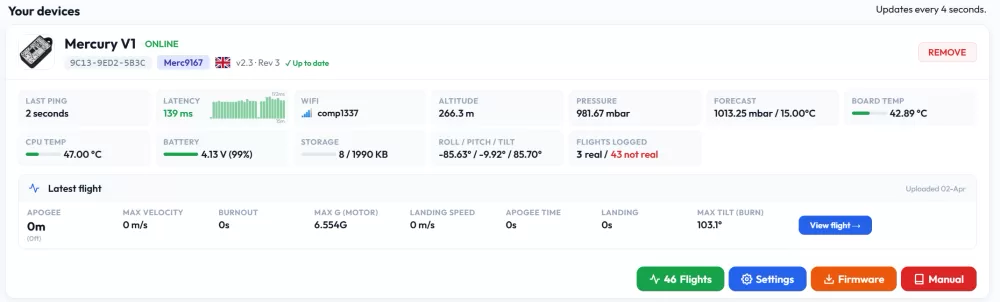
The best way to manage your Mercury altimeter is via the Altimeter Cloud website.
Step 1 - Get your altimeter online and connected to the internet.
There are two ways to configure WiFi networks on your Mercury so that it can connect to the internet.
First you need to enter WiFi mode, this is done by connecting a USB cable that supplies power (So either a PC/Laptop/Phone USB port or just a USB charger or battery bank will work). Then turn your Mercury on.
If USB is present the Mercury enters WiFi mode, and if USB is not present it enters flight mode.
Option 1: USB Cable and the Altimeter Cloud website tool
This is the quickest and easiest way to connect your Mercury to the internet.
Connect your Mercury to a PC or Laptop using a USB cable and load a Google Chrome, Microsoft Edge or Opera web browser. Then just pop over to our tool at https://www.altimetercloud.com/tools/usb_wifi_configuration/
This tool will let you configure your WiFi networks on to the Mercury over the USB cable connected between your PC and the Mercury.
There is also a link at the top of the website.
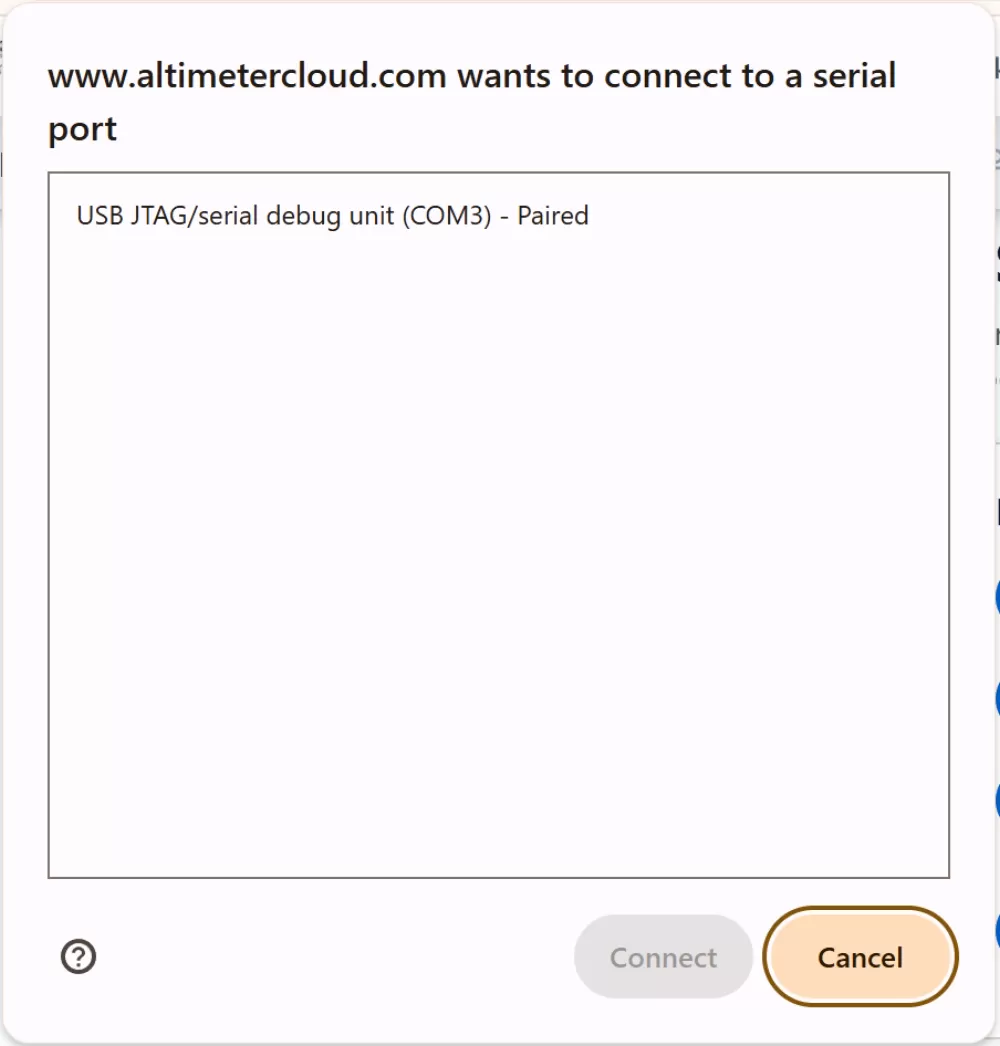
Click on "Connect device" and pick the item called USB JTAG/serial.
Now click connect.
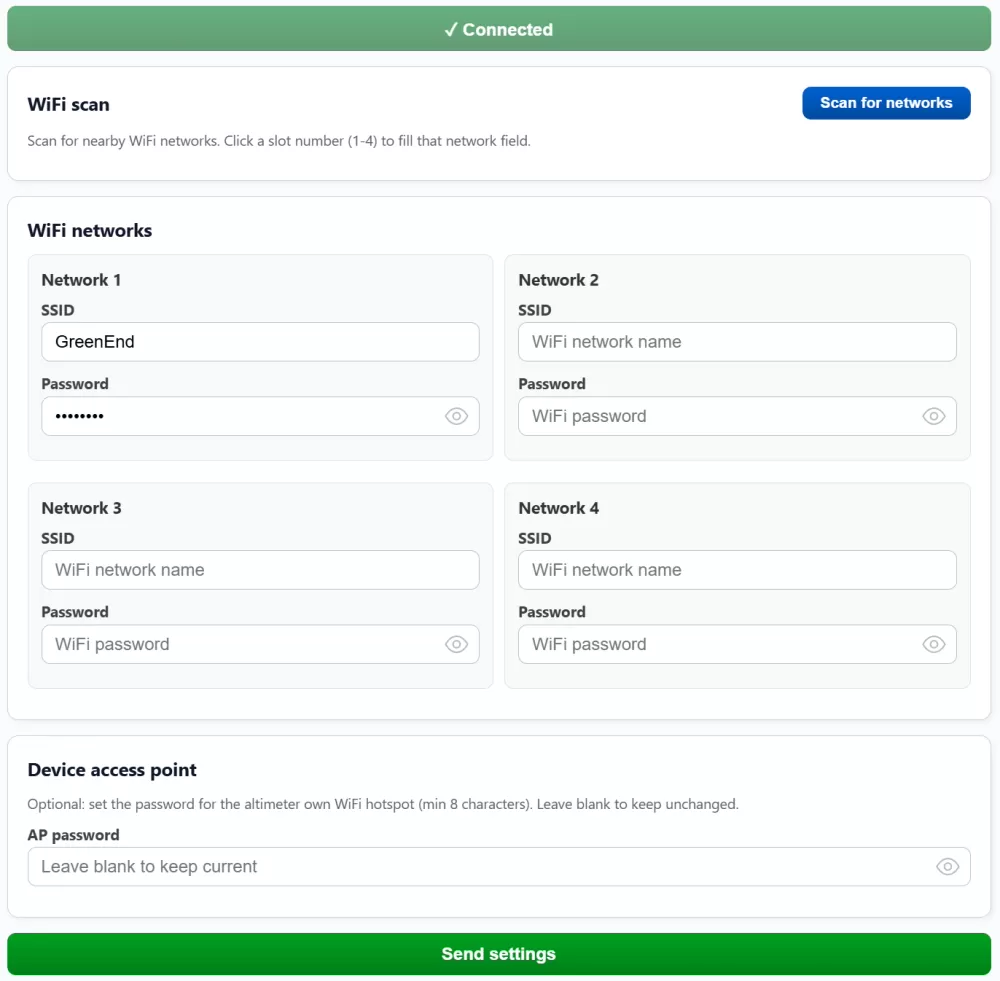
You can now configure your WiFi networks and even scan for them via this page.
Once configured just click the "Send settings" button at the bottom of the page.
Your Mercury will now be configured and will restart and connect to your WiFi network.
If you can't see any WiFi networks when you scan (if you're on firmware 2.3+) or it won't connect then it's likely you've entered your WiFi password and network name incorrectly or you only have 5GHz WiFi. The Mercury requires 2.4GHz WiFi currently. There are more trouble shooting tips on this page.
If your Mercury connects successfully then it will strobe GREEN in Wifi Mode instead of BLUE.
BLUE = No internet WiFi connected (You can still connect to it's internal WiFi).
GREEN = Internet WiFi connected.
Once connected you can skip on down this page to Step 2.
Option 2: The Mercury internal web server and internal WiFi
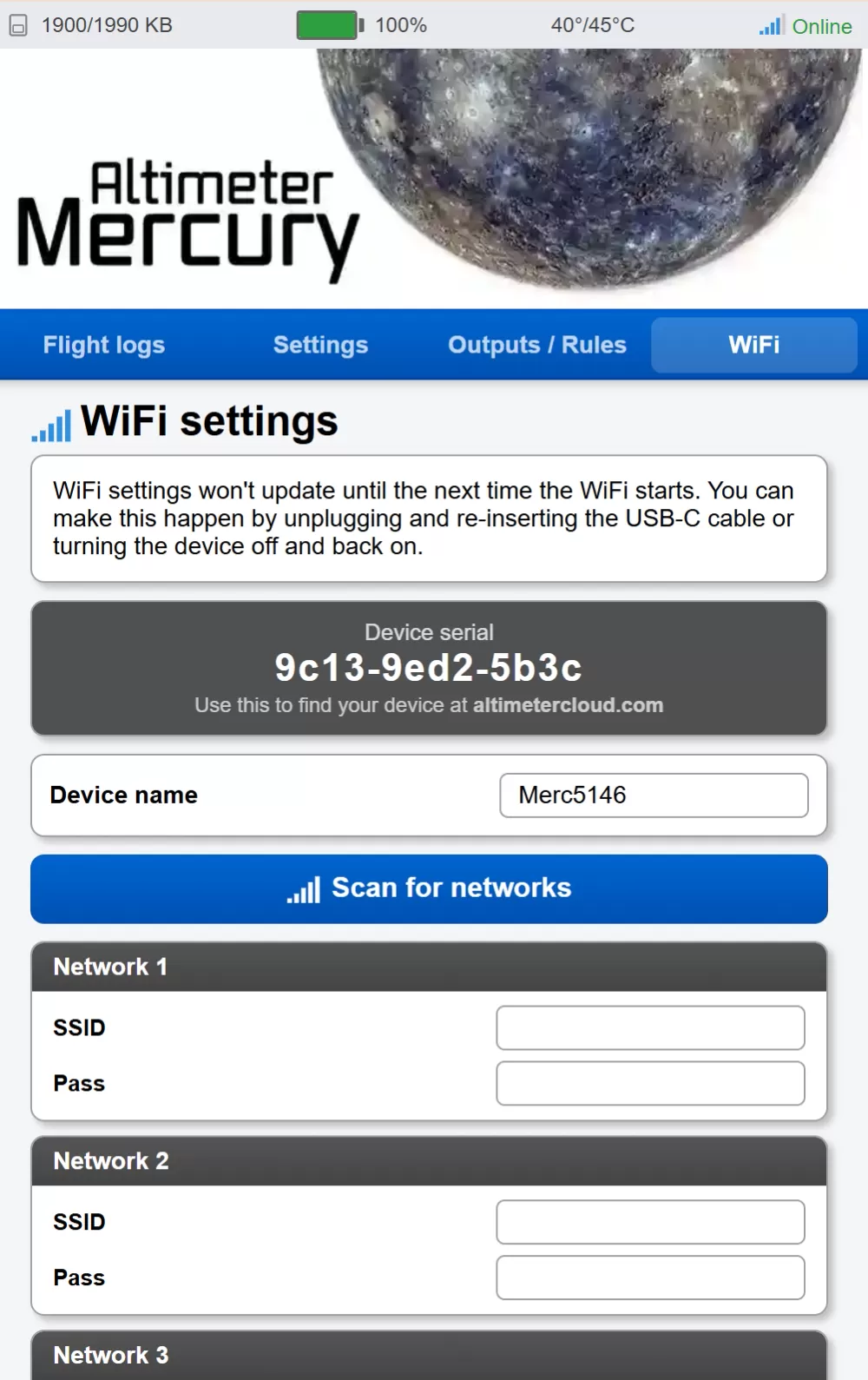 When the Mercury starts up in WiFi mode it also creates its own WiFi network that you can connect to and configure the Mercury directly. Once it is turned on with a USB cable connected to supply power it will enter WiFi mode and this will be enabled. (Starting up without USB power will cause the Mercury to enter Flight mode instead).
Step 1: Connect to the Mercury's WiFi network. It will be called MercuryAlt_0000 the numbers may be different at random. The default WiFi password will be written on the back of the packaging, If you have lost your password you can recover it using the Serial USB tool from the tools section and a USB cable.
Step 2: Your device may complain that there is no Internet and do you still want to connect. Say you do want to connect if this occurs.
Step 3: Visit the following page in a web browser, you may need to type the full http:// part as well as the IP address. http://192.168.0.1
Step 4: You can now configure your altimeter settings and WiFi networks under the WiFi menu option.
Step 2 - Adding your device to the Altimeter Cloud
Now you are connected to the Internet you can add your device to your account on the Altimeter Cloud.
Ensure you are registered and logged in to the website before doing this.
First click on the My Devices section in the top menu of the website.
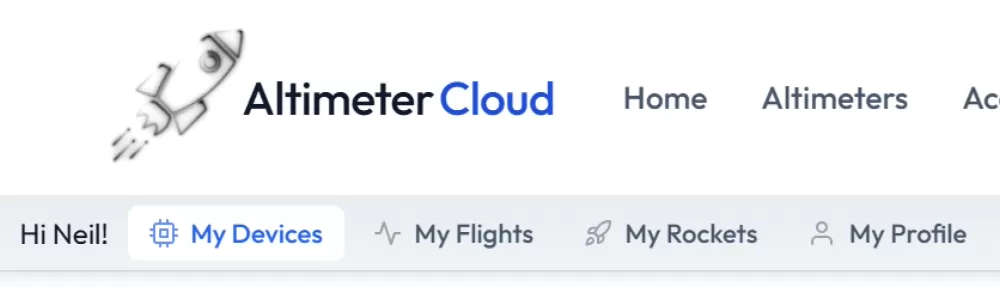
If you are on a mobile device you can find it in the Hamburger menu icon instead.
You should now see any online devices on the left hand side of the page.
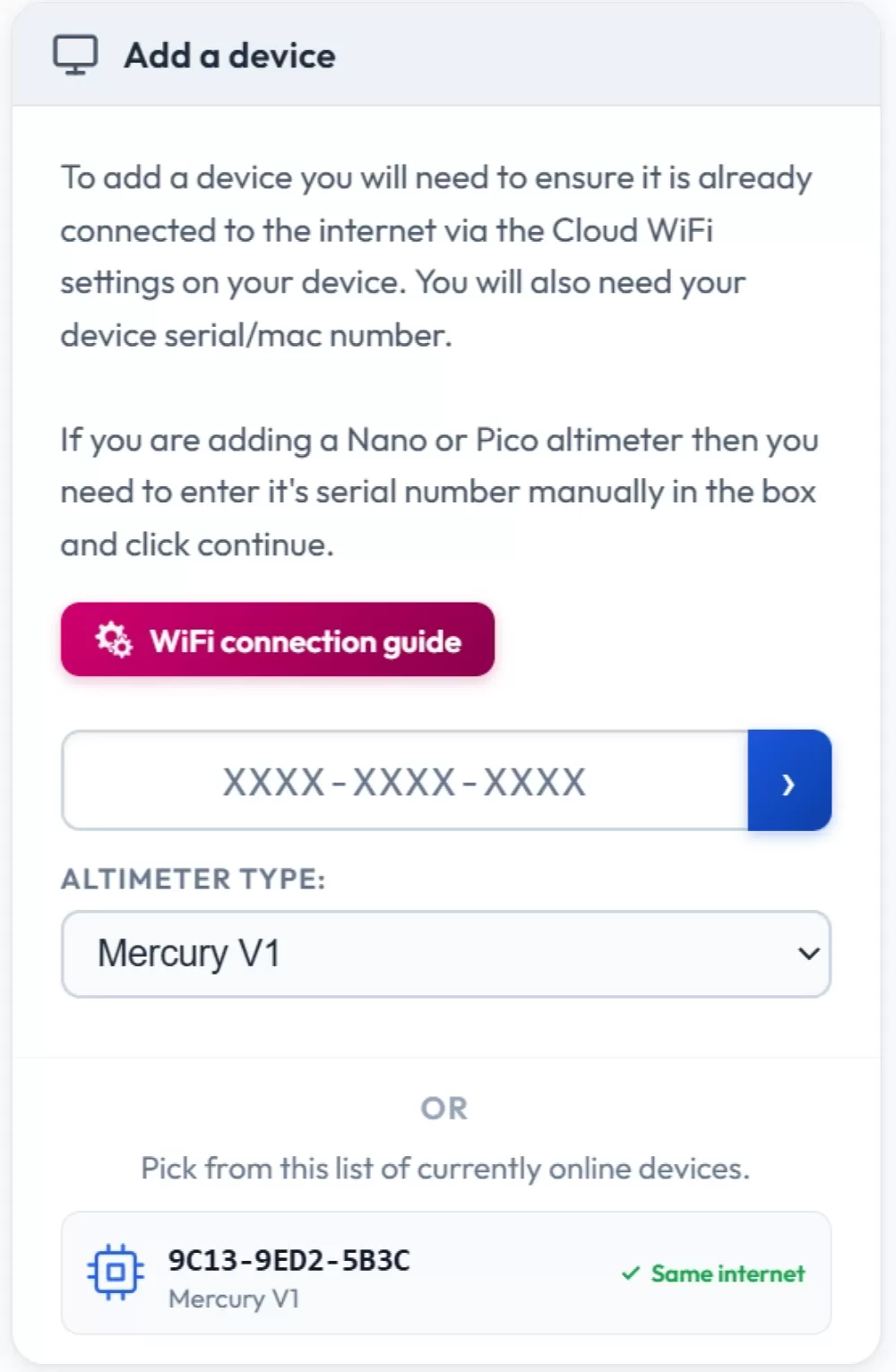
If your device is here you can just click on it. Or you can add your Serial / Mac number directly in the box and select Mercury V1 as well.
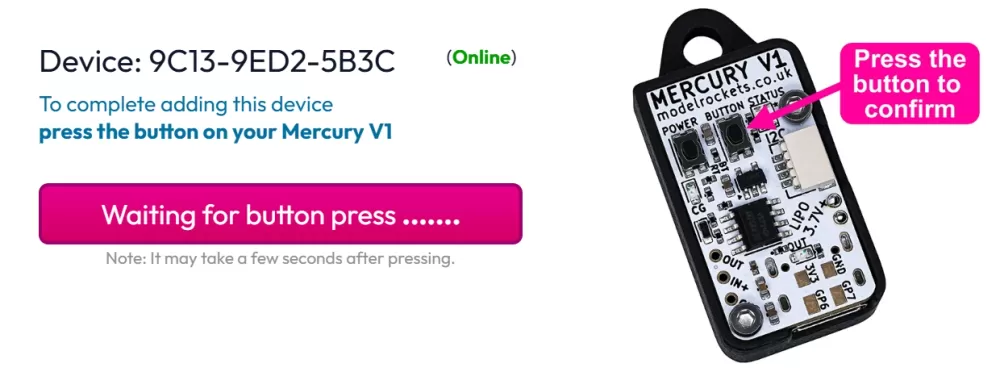
You will then see a page like this one.
All you need to do is press the button on your Mercury for around 1 second.
After a few seconds the Mercury will be added to your account.
You will now see your added device on the right and all the options to view your flights, update the firmware a link to the manual and of course all the settings.