The Altimeter Cloud website lets you manage your devices and the flights associated with each one, and view your flight logs in detail. It can also verify that a flight log is genuine and unedited: even if a log is emailed to you long after the flight, you can still confirm it has not been altered.
Adding your device to your account
To add a Nano to your Altimeter Cloud account, pop over to the My Devices page after you have logged in.
On the left you can enter your serial number and select the Nano V1 altimeter type from the drop-down box.
You can find your serial number and verification key in the device_information.html file in the USB drive folder for your Nano. To grab this file, just connect your Nano with a USB cable to a PC, laptop or other smart device to access the files.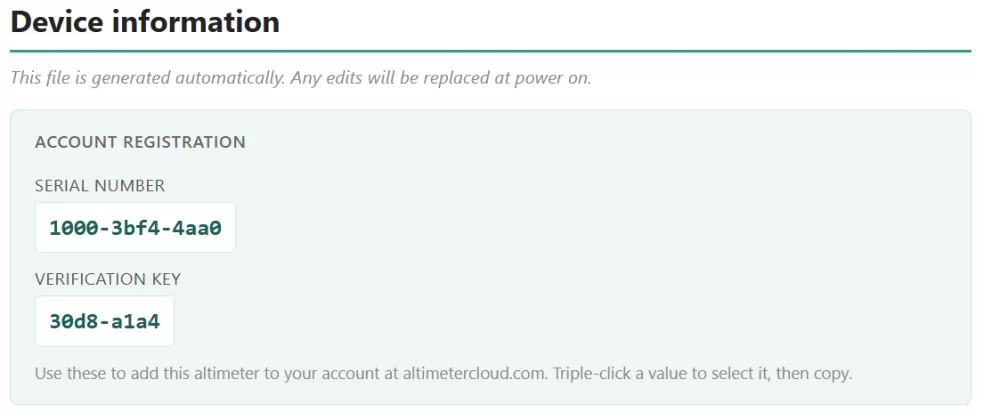
Example information in the device_information.html file.
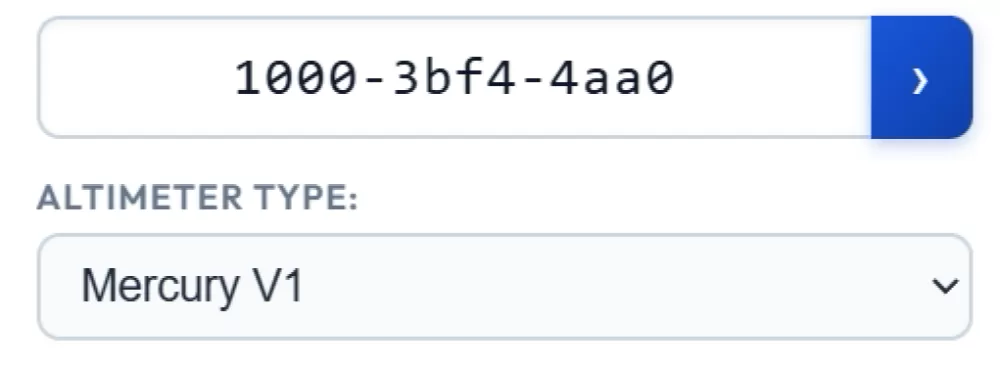
Example data entered in the Add a device section of the My Devices page.
Click the Next button by the serial number box. On the next page you will be asked to enter your verification key.
Once you do this, the Nano will be added and will appear in your list of devices.
Uploading flight logs to the Altimeter Cloud
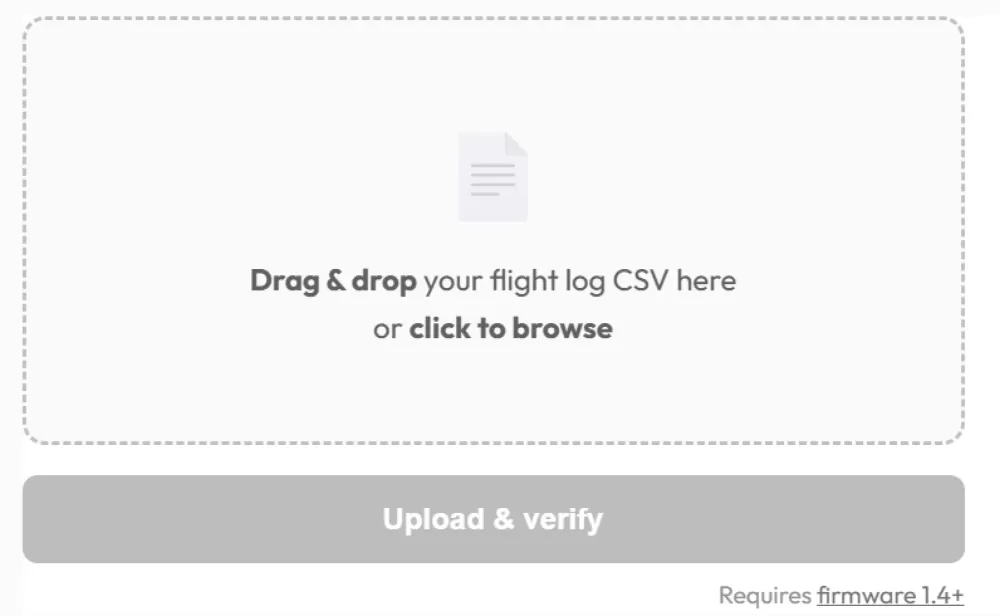
When you want to add a flight to the Altimeter Cloud and view the charts and data, it's quick and easy to do.
Visit the Log uploader page and just drag and drop your flight logs in. You can also click the file box to select files.
If your log has been edited, it will fail verification and won't be added. Flight logs are therefore always verifiable as genuine and unedited from the moment the Nano saves them to its flash memory.

Our flight log pages can be shared, and you can add extra information such as photos, videos, notes and even the motors you flew with.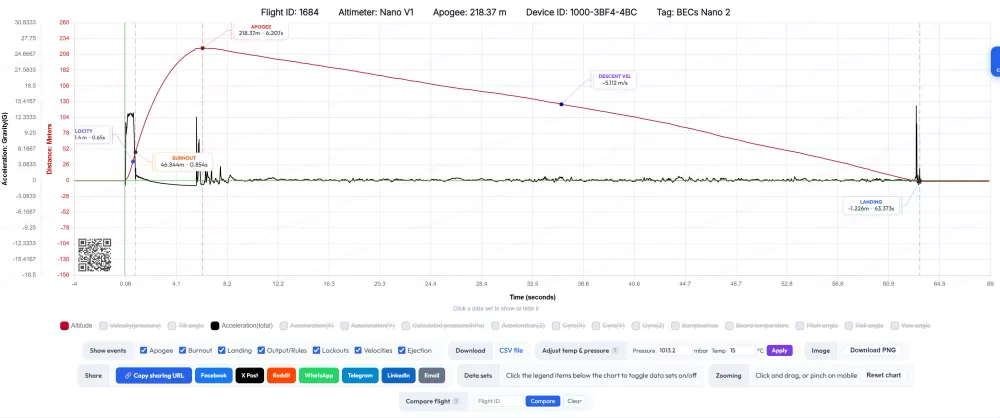
iGOOD TO KNOW
Your competitor tag and device tag settings are included in the flight log and verified by the secure hash system, so a flight log can't be altered after the flight to change the competitor or device details.
Here are some example flight logs