The Nano stores all of its user-editable settings in a single file called device_settings.txt, in plain-text JSON format. You edit it directly over USB, there's no app required. This page covers the file format, how to edit it safely, and what every setting does. Note that all heights and distances are given in metres, not feet.
Reference for firmware 1.52. Earlier firmware may differ slightly; your exact version is shown in device_information.html.
- With the Nano's power switch off, connect it to your PC, laptop, tablet or smartphone with a USB cable. It mounts as the ALTCLOUD drive.
- Open
device_settings.txtin any plain-text editor. - Change the values you want. Keep the JSON structure intact, every entry needs its quotes, the colon between name and value, and a comma after it (except the last one), all inside the surrounding
{ }braces. Text values (the tags) stay in quotes; numbers are written without quotes. - Save the file, then eject the drive safely.
- Power-cycle the Nano (disconnect USB and switch it on, or unplug and replug). Settings are read and applied on the next power-on.
!IMPORTANT
If the file contains any JSON error, or a value that is out of range or unsupported, the Nano discards the whole file and rewrites it with default values on the next power-on. So if your changes seem to have vanished, check for a typo or a value outside the allowed range. Always leave "device": "NanoV1" unchanged, if it doesn't read as NanoV1, none of your settings are applied.
A fresh Nano ships with these values:
{
"device_tag": "MyNano",
"competitor_tag": "",
"device": "NanoV1",
"emode": 1,
"factoryreset": 0,
"hybrid_mode": 3,
"launch_detect": 30,
"launch_protection": 1500,
"led_brightness": 5,
"maintain_power": 1,
"max_samples": 24000,
"orientation": 1,
"recording_stop": 1,
"sample_ratio": 1,
"sample_speed": 100,
"startup_lock": 0,
"sync_enable": 2
}
Settings marked Rev 4+ rely on the IMU and only apply to Revision 4 and later boards.
iThese fields are built into the verification hash
When the Nano records a flight, the device tag and competitor tag are written into the log and folded into its SHA-256 HMAC verification hash at that moment. Because of this, a saved log cannot be changed afterwards, not even these tag fields, and still pass a verification check or be uploaded to the Altimeter Cloud. Every flight log must be kept exactly as the Nano wrote it. Editing device_settings.txt itself is fine; it only changes the values used for future flights.
device_tag Default "MyNano" · text, must not be empty
A label for this altimeter. It's written into the header of your CSV flight logs and, if you upload a log to the Altimeter Cloud, applied to the flight page there too.
competitor_tag Default "" (empty) · text, up to 32 characters
Optional field for your FAI or NAR competition number. Included in the CSV header and in the data-verification hash. Leave it empty if you're not competing.
device Default "NanoV1" · do not change
Identifies the device type and selects the algorithm used to generate the verification hash in the CSV, which the Altimeter Cloud uses to confirm a log is genuine. If this isn't "NanoV1", your settings won't be applied.
launch_detect Default 30 · range 1 to 199 m
Height in metres above the recent ground-level pressure that the altimeter must climb through before it starts recording a flight. Values of 25 to 50 m suit most uses.
startup_lock Default 0 · range 0 to 999 s
Prevents launch detection until this many seconds have passed since power-on. 0 turns it off. Useful if you need time to close up the rocket after switching on.
launch_protection Default 1500 · range 0 to 10000 mG Rev 4+
Accidental-launch protection threshold in milli-G. Acceleration must exceed this value in at least 6 of the last 100 samples before recording can start, which stops wind gusts or removing the nosecone from triggering a false launch. 1500 = 1.5 G. Set to 0 to disable.
recording_stop Default 1 · 1, 2 or 3
When recording ends. The Nano always also stops on low battery or when it reaches max_samples. 1 = stop after about 9 seconds (450 samples) of stable altitude; 2 = after about 18 seconds (900 samples); 3 = only stop at max_samples.
max_samples Default 24000 · range 4000 to 24000
The maximum number of samples recorded before the log stops automatically.
sample_speed Default 100 · 50 or 100 (Hz)
The sensor loop rate. A higher rate captures more detail but uses more battery. At 100 Hz with sample_ratio 1 the maximum flight recording is about 4 minutes; at 50 Hz it's about 8 minutes.
By default hybrid_mode is set to 3, which stretches that window much further. The climb and the moments around apogee and landing are kept at the full 100 Hz, while the long descent is logged at one third of the rate. Taking a typical case of about 15 seconds at full rate (roughly 1,500 samples) and the rest of the 24,000 sample budget spent on the descent at one in three, the default settings can capture a flight lasting up to around 11.5 minutes, compared with about 4 minutes without hybrid mode. A longer or shorter full rate phase will shift this figure.
sample_ratio Default 1
How often readings are written to the log. The altimeter always runs and calculates at the full sample_speed (50 or 100 Hz); this setting only changes how often those current values are saved to the flight log. 1 = save every sample, 2 = every other, 3 = every third, and so on, which is a simple way to extend recording time. The log always runs at a minimum of 10 Hz, so the ratio is capped at 10 when sample_speed is 100 and at 5 when it's 50; anything higher you enter is silently clamped down to that.
hybrid_mode Default 3 · 0, 3 or 5
Adaptive sampling for long flights. 0 = off (always use sample_ratio). 3 = drop to 1-in-3 sampling ten seconds after apogee; 5 = drop to 1-in-5. On the way down, below 20 m above ground it returns to full rate to capture the landing precisely, then drops back to the hybrid ratio five seconds after touchdown. This keeps full detail during ascent and landing while stretching recording time over long parachute descents.
emode Default 1 · 1 or 2
Energy-saving level for longer battery life. 1 = normal. 2 = maximum saving, using lower-rate FIFO batch reading while idle to halve the CPU wake cycles. Both modes switch instantly to full 100 Hz performance the moment an acceleration spike or launch is detected. The power saving relies on the IMU, so it has most effect on Revision 4 and later boards.
How the idle rate works (shown at 100 Hz sample_speed)
emode 1 idles at 50 Hz. A movement bump briefly jumps it to 100 Hz to check; with no launch it drops back to 50 Hz. At launch it locks to 100 Hz for the whole flight.
emode 2 behaves the same but the CPU only wakes at 25 Hz to save more power. It still logs at the full 50 Hz before launch: each time it wakes it reads every sample buffered since the last check, so no data is dropped. It still jumps straight to 100 Hz at launch.
The jump back to full speed is very sensitive, so in almost all of our testing the igniter's initial thrust triggers it instantly and the whole motor burn is captured at the full 100 Hz from the very start. The most you would ever record at the idle rate before the jump is one idle cycle: about 20 ms in emode 1, or about 40 ms in emode 2.
maintain_power Default 1 · 0 or 1
What the Nano does after saving a flight. 0 = switch the sensor and LED off and sleep until you power-cycle it. 1 = stay on and blink the recorded apogee altitude on the status LED (see below), repeating until you connect USB or power-cycle. This both confirms a flight was recorded and lets you read the apogee without a computer.
Reading the altitude flashes (when set to 1)
The Nano blinks the apogee height in metres one digit at a time, most significant digit first, with leading zeros skipped. Each digit place has its own colour:
10,000s 1,000s 100s 10s 1s
- A long white flash marks the start of the sequence.
- The number of blinks in a colour is that digit's value (1 to 9).
- A digit of zero is shown as one long, dim flash of that colour.
- A dark blue flash separates one digit from the next.
- After the last digit there is a short pause, then it repeats. Connect USB or power-cycle to stop.
Example, an apogee of 1,250 m: purple once, green twice, cyan five times, then one long dim yellow flash for the zero, with a dark blue flash between each digit.
led_brightness Default 5 · range 1 to 10
Status-LED brightness, which also saves a little power when dimmed. Note the scale runs the other way to what you might expect: 1 is brightest and 10 is dimmest.
orientation Default 1 · 1 to 6 Rev 4+
Tells the Nano how it is mounted in the rocket so it can work out the flight angles correctly. Match the number to the orientation diagram, where the marked direction (the ^ arrow) points up towards the nose:
- 1 = standing upright, board face towards you, micro-USB at the bottom (default)
- 2 = standing upright, board face towards you, micro-USB at the top
- 3 = on its side, board face towards you, micro-USB to the right
- 4 = on its side, board face towards you, micro-USB to the left
- 5 = lying flat, board face (component side) up
- 6 = lying flat, board face (component side) down
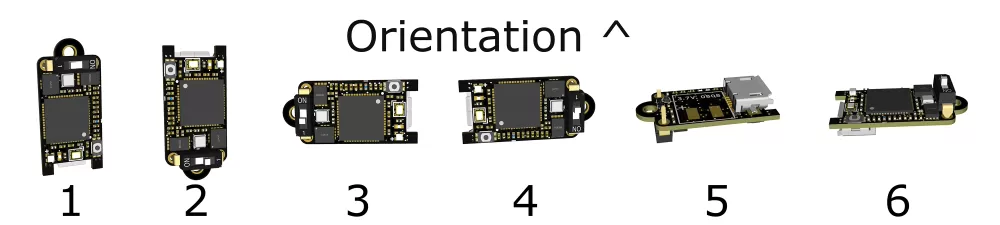
sync_enable Default 2 · 0, 1 or 2 Rev 4+
Aligns the pressure and IMU data streams. Filtering makes the pressure altitude lag slightly behind the accelerometer; with this enabled (2) the firmware measures that offset at launch and shifts the accelerometer data so the two line up. 0 or 1 disables it.
factoryreset Default 0 · 0 or 1
Set to 1 to reformat the file system and rewrite every setting back to its default on the next power-on. It returns to 0 afterwards.
Every time it powers on, the Nano reads device_settings.txt, applies it, and then writes the file back out with the values it actually used. That makes it easy to confirm your edits were accepted:
- Save your edits and eject the drive.
- Unplug the Nano from USB and plug it back in. This restarts it so it reads the file fresh.
- Re-open
device_settings.txt. If your values are still there, they have been applied. If the file has reverted to the defaults, it contained a JSON error or a value outside the allowed range, so check it against the ranges above and try again.
For FAI compliance, several values that older firmware exposed are now fixed in firmware and can no longer be changed. If you add any of these keys to the file they are simply ignored (and won't, on their own, cause a reset). The fixed values are still written into the CSV header for reference:
- Sea-level reference pressure, fixed at 1013.25 hPa (ISA standard).
- Fixed temperature, fixed at 15 °C (ISA standard).
- Temperature use, off.
- IIR filter, fixed at 7.
- Kalman filter, fixed at 2.
- Sensor oversampling, fixed per hardware revision (16 on Rev 4+ with the BMP581, 8 on Rev 1 to 3 with the BMP390).
Older settings files or documentation may still list keys such as fixed_temp, sealevel, use_temperature, iirfilter or kalmanfilter, these no longer have any effect.